Head and Neck
Keep the head balanced over the shoulders rather than projecting forward toward the screen. When monitor height is correct, the neck maintains a natural curve without excessive flexion or extension.
Practical information on seated positioning during computer work. This page is published for general education only and is not medical, physiotherapy, or occupational therapy guidance.
Core Concepts
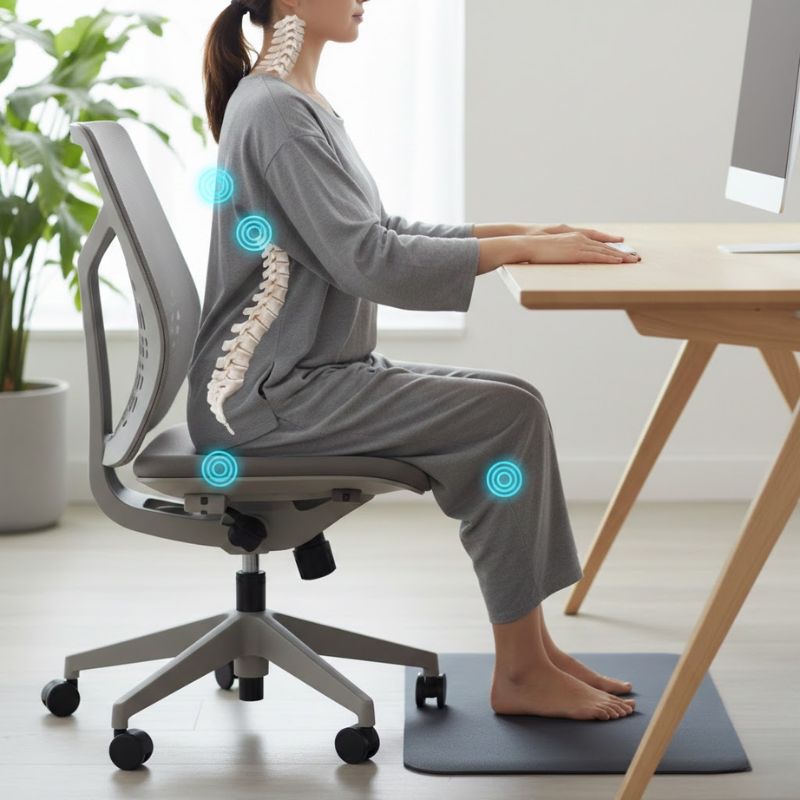
Neutral alignment refers to a seated position where joints rest in mid-range positions, minimising sustained strain on muscles and connective tissues during static work.
Keep the head balanced over the shoulders rather than projecting forward toward the screen. When monitor height is correct, the neck maintains a natural curve without excessive flexion or extension.
Relaxed shoulders, not elevated toward the ears, reduce upper back tension during keyboard and mouse use.
Elbows bent at approximately 90 degrees with forearms parallel to the floor and wrists in a neutral, straight position.
Thighs parallel to the floor with feet flat on the ground or a footrest. Avoid crossing legs for extended periods, as this can alter pelvic alignment and hip rotation over time.
Movement Integration
Every 30 Minutes
Stand briefly, roll shoulders backward, and look at a distant object for 20 seconds. These small interruptions counteract the effects of prolonged static positioning.
Every 60 Minutes
If using a sit-stand desk, alternate to standing for 10 to 15 minutes. Without a standing desk, walk to another room, refill a water glass, or perform light household movement.
Midday
Schedule a 15 to 20 minute walk, stretch session, or exercise break during lunch. Outdoor movement provides additional visual and circadian benefits compared to indoor activity alone.
Movement Breaks
The following are general activity suggestions referenced in workspace education materials. They may not suit every person and are not prescriptive instructions.
Slowly turn the head left and right, holding each position briefly. Move within a comfortable range without forcing rotation.
Extend arms forward and rotate wrists gently in both directions. A simple activity to use during short breaks from typing or mouse work.
Clasp hands behind the back and gently draw shoulder blades together. Hold briefly while breathing steadily. Skip this activity if you have an existing shoulder injury.
Chair Setup
Most office chairs offer multiple adjustment points. Configuring them correctly is often more impactful than purchasing a new chair entirely.
Replace chairs that no longer hold adjustments, have compressed cushioning, or lack lumbar support entirely. Test chairs in person when possible, as fit varies significantly between body types.
Budget options with basic adjustability often outperform premium chairs that lack proper configuration for your body dimensions.
Sit-Stand Transitions
Raise or lower the desk smoothly rather than abruptly. Allow your body a few minutes to adapt to each new position before resuming intensive typing or mouse work.
Standing for extended periods may cause leg fatigue for some individuals. Many guides suggest alternating between seated and standing rather than using one position exclusively.
Supportive footwear or an anti-fatigue mat may make standing intervals more manageable. Avoid prolonged standing on hard surfaces in unsupportive shoes.
When switching to standing, verify that monitor height and keyboard position remain appropriate. Monitor arms with full motion range simplify these transitions.
Daily Habits
Begin each work session by checking chair settings and screen position. Small drifts in configuration accumulate over days of use.
Keeping a water bottle at the desk encourages periodic standing to refill and visit facilities, naturally integrating movement into the day.
Clear the desk surface and adjust the chair to its default settings. A tidy workspace supports a consistent starting position the following morning.
Questions
Contact our team for general educational information. We do not provide clinical assessments or product sales.